Create a Channel
Create a channel to connect your project to a social platform and define how your content is generated and published.
Written By Daisy Veciana
Last updated 5 months ago
Overview
Creating a channel connects your project to a social media platform and defines how your content is generated and published.
Each channel controls both where your content goes and how it sounds, so Trbby can tailor posts to match the platform and your voice.
Create a Channel
Go to Channels in your Trbby workspace
Click Create Channel
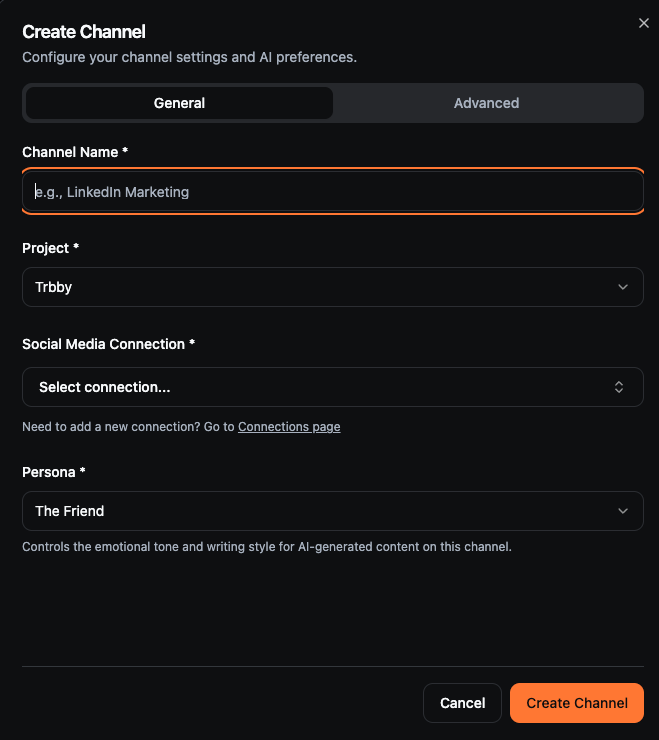
Enter a Channel Name (e.g., LinkedIn Marketing, X Content Creation)
Select the Project this channel belongs to
Choose your Social Media Connection
Select a Persona to define the tone and writing style of your content
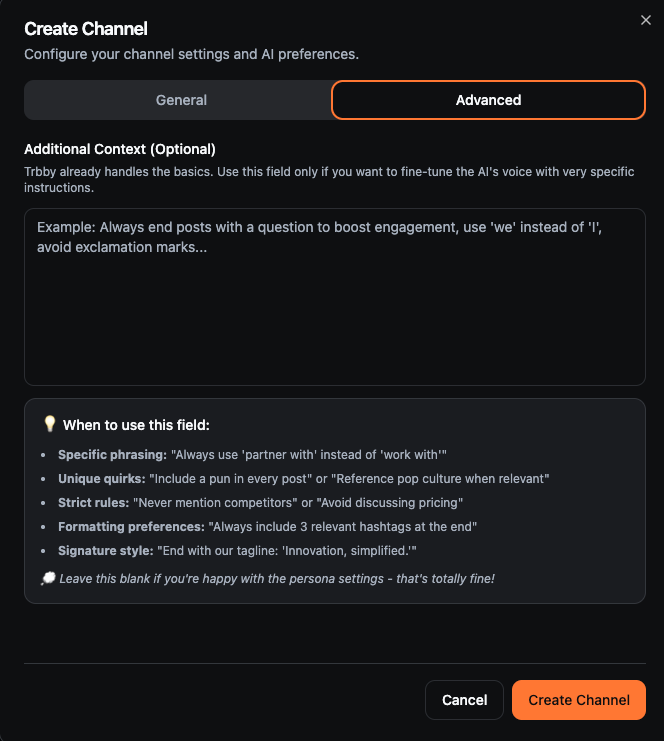
(Optional) Add Additional Context to fine-tune how content is written
Click Create Channel
Once created, your channel is ready to generate and publish content.
Channel Settings
When creating a channel, you’re configuring both publishing and content behavior.
General
Channel Name
Helps you organize your content by platform or purpose.
Project
Connects the channel to a specific project so everything stays aligned.
Social Media Connection
Determines where your content will be published.
Persona
Controls the tone and writing style of your content.
Advanced (Optional)
Additional Context
Use this to fine-tune how Trbby writes for you.
This is helpful if you want to:
Adjust specific phrasing or wording
Add personality or quirks
Set rules (what to include or avoid)
Define formatting preferences (e.g., hashtags, structure)
You can leave this blank if the persona already matches your style.
Next Steps
Now that your channel is set up, you can:
Need Help?
If you run into any issues, our team is happy to help. You can reach us in our Discord community or by emailing our support team at support@trbby.com.