Set your Image Generation Preferences
Trbby allows you to customize how AI-generated images appear across your content so your visuals feel intentional, consistent, and aligned with your brand.
Written By Daisy Veciana
Last updated 8 months ago
Instead of generating generic visuals, you can set preferences that guide how images are created for your posts.
Access Image Generation Preferences
Go to Projects in your Trbby workspace
Select the project you want to customize
Open Project Settings
Click Preferences
This is where you can control the default style and behavior for AI-generated images within that project.
Set Project-Level Image Preferences
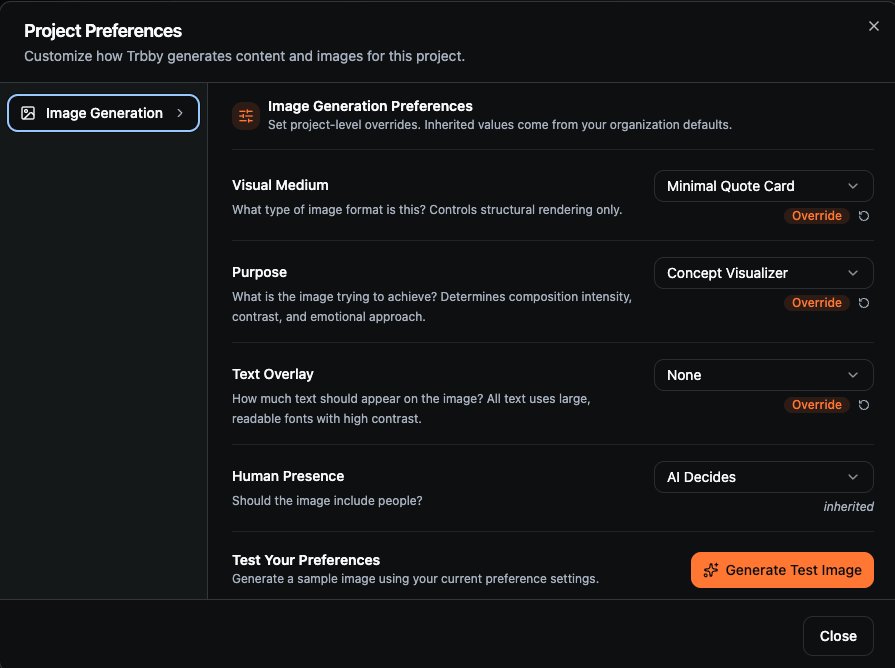
Inside Project Preferences, you can define how images should be generated for your project.
You can customize:
Visual medium
Purpose
Text Overlay
Human Presence
These settings act as default guidelines for image generation across your posts.
Test Your Image Settings
Once you choose your preferences:
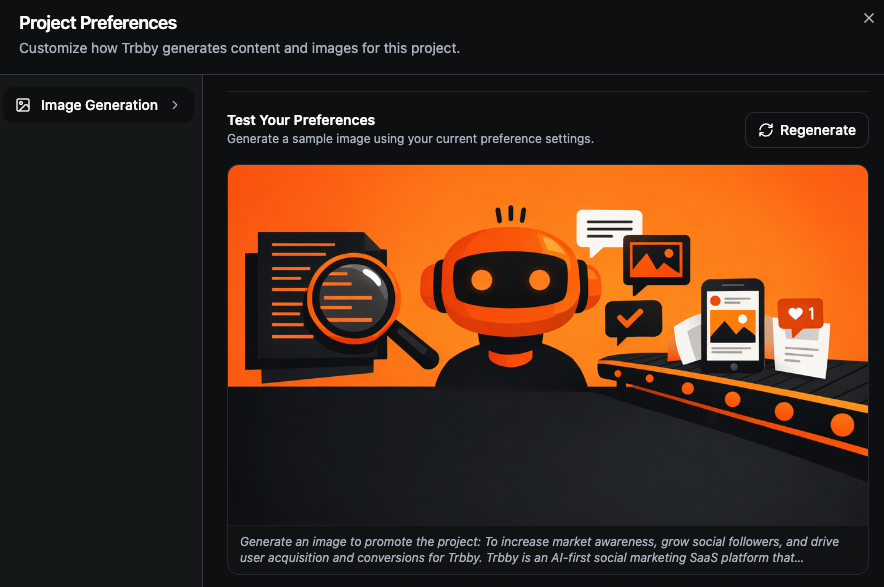
Click Generate Test Image
Trbby will create an image based on your settings
Review the result to see how it fits your style
You can regenerate images to see different variations.
When you close the preview, your preferences are automatically saved.
Need Help?
If you run into any issues connecting your accounts, our team is happy to help. You can reach us in our Discord community or by emailing our support team at support@trbby.com.
Was this helpful?
Still need help? Ask the team